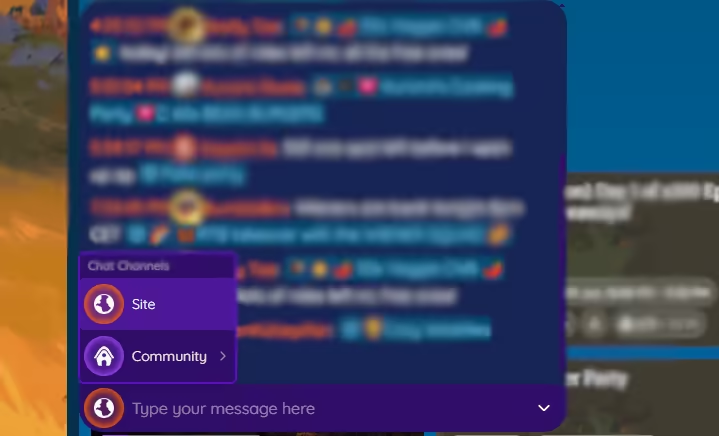
The Palia Party chat widget lets you stay connected across site, community, party, and whisper channels.
The Chat feature is built right into Palia Party, letting you communicate with other players without ever leaving the site. The chat widget is always available at the bottom of the screen, and supports four distinct channel types so you can always talk to the right people.
Chat Channels
The chat supports four channel types, each with its own icon and color so you can tell them apart at a glance:
Site: The global lobby channel. Everyone on Palia Party is in this channel, making it a great place to find groups, ask questions, or just hang out.
Community: Each community you're a member of has its own channel. Community channels show the community's name, color, and avatar, so you always know which group you're talking to.
Party: When you join a party, a dedicated party channel appears. This is where you coordinate with your party members before, during, and after the activity.
Whisper: Private one-on-one conversations with other users. Whispers show the other person's name and avatar.
Switching Channels
Click the channel icon on the left side of the chat input to open the channel selector. The selector lists all available channels, grouped by type. Communities and Whispers each have their own submenu, while Site and Party are listed directly. Selecting a channel switches the chat to that channel's messages.
Unread Indicators and Notifications
The chat makes it easy to know when there's something new to read:
Unread Dots: Each channel with unread messages shows an animated colored dot next to its icon. The dot's color matches the channel type.
Chat Icon Badge: When you have unread messages in a channel you're not currently viewing, a badge appears on the main chat icon so you know to check.
Sound Notifications: A subtle pop sound plays when a new message arrives and the chat is closed or the browser window is not focused. You can toggle sound on or off in your options.
When you open the chat and view a channel, its unread state is automatically cleared.
Muting Channels
If a channel is too noisy, you can mute it:
Mute a single channel: Click the channel icon next to any channel name in the chat type selector. Muted channels appear grayed out and won't show unread indicators or play sounds.
Mute all communities or whispers: Click the mute icon next to the "Communities" or "Whispers" submenu label to mute or unmute all channels of that type at once.
Unmuting a channel clears its unread status, so you won't be flooded with old unread indicators.
Sending Messages
To send a message, simply type in the input field and press Enter. The chat supports a few rules to keep things manageable:
Rate Limiting: The Site channel has a 60-second cooldown between your own messages. All other channels (Community, Party, Whisper) have a 10-second cooldown. A countdown timer appears next to the input when you're on cooldown.
Duplicate Prevention: Sending the exact same message as the last one in the channel is blocked.
Account Required: You need to be signed in with a display name set to send messages. If you're not signed in, the chat shows a sign-in prompt. If you don't have a display name, you'll be prompted to set one on your profile.
Message Features
Translations
If a message from another user has been translated, you'll see a "Show translation" link below it. Click it to view the translated text, and click "Show original" to switch back. This makes it easy to communicate across language barriers.
Message More Menu
Hover over any user message and click the three-dot icon to open the more menu:
Go to Profile: Navigate to the sender's public profile.
Set Player Note: Attach a private note to the sender's profile for your own reference. This is a Gold or Diamond premium feature.
Gift Premium Membership: Send a premium membership gift to the sender directly from chat. The gifted membership will appear as a special themed message in the chat.
Delete Message: Available only to channel moderators (see below).
Gifted Membership Messages
When someone gifts a premium membership through chat, a special styled message appears in the channel with the membership tier's color (Silver, Gold, or Diamond), showing who gifted and who received it.
Message Moderation
Message deletion permissions depend on the channel type:
Site: No one can delete messages.
Community: Only Community Leaders can delete messages in their community's channel.
Party: The Party Host and Co-Hosts can delete messages in the party channel.
Whisper: No one can delete messages.
Deleted messages are removed in real time for everyone viewing the channel.
Tips
Coordinate before activities: Use the Party channel to confirm roles, share instructions, and make sure everyone is ready before starting.
Stay in the loop: Keep the Site channel unmuted to catch LFG posts and community announcements.
Use Whispers for side conversations: If you need to talk privately with another player, switch to a Whisper channel without leaving the page.
Mute when needed: If you're focused on a party activity, temporarily mute the Site channel to reduce distractions.
 Portal
 Party
Party Trading